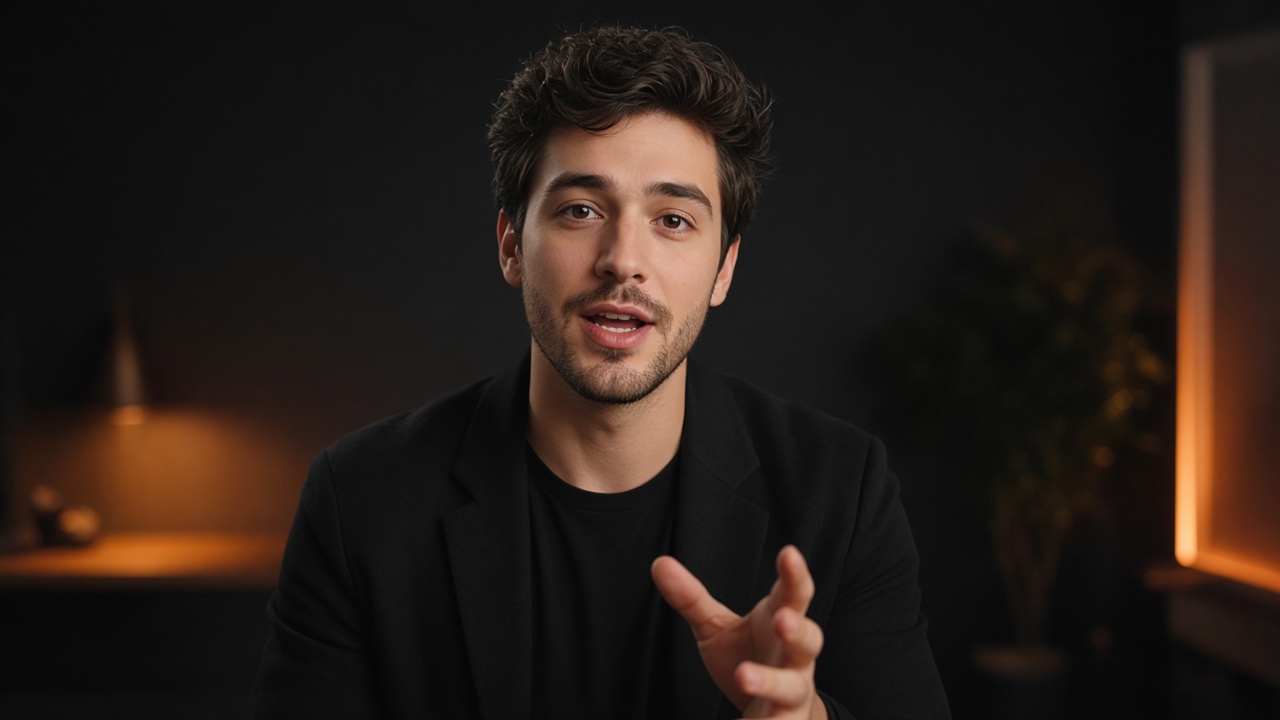
Stop Guessing the Runtime. Hyper-Realistic Talking Video Just Landed.
Upload a photo, prepare real speech, and get a hyper-realistic talking avatar video in about 3–4 seconds—without guessing how long the clip should be.
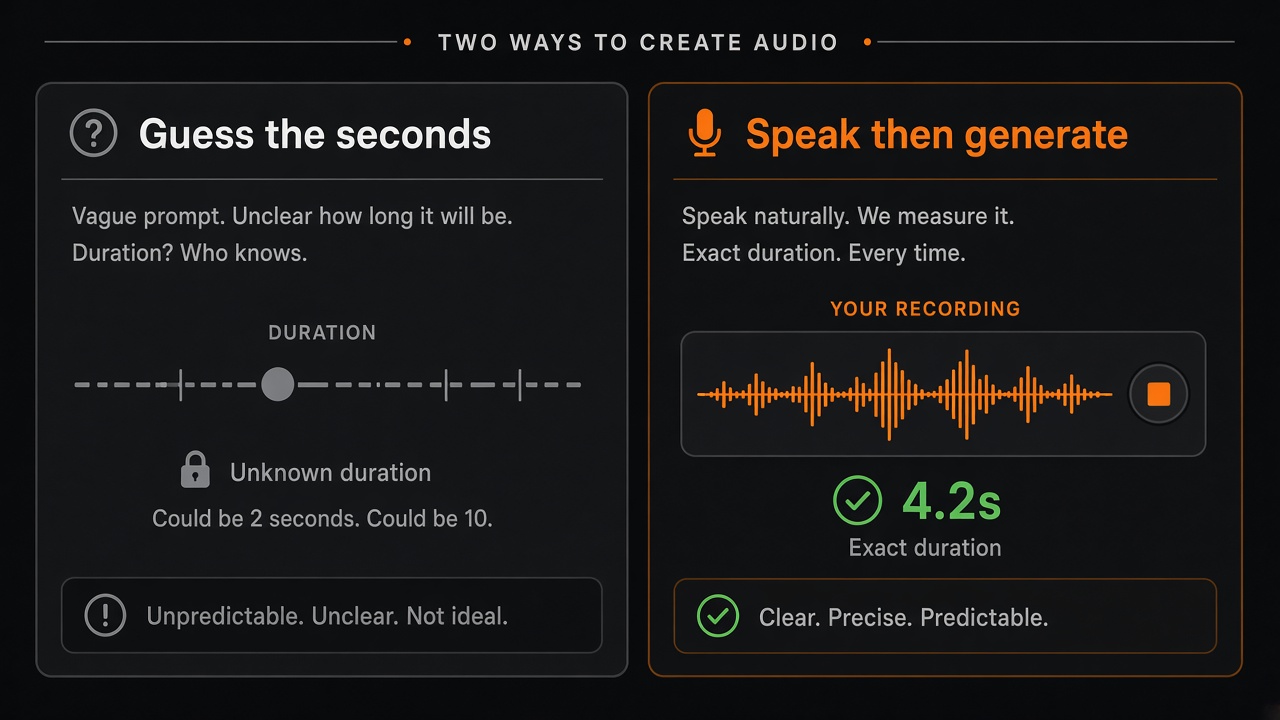
Most AI video tools ask you to do something absurd: invent how many seconds of video you need before anyone has spoken a word. You type a script. You stare at a duration field. You pick “8 seconds” and hope the mouth finishes on time. It rarely does.
We just launched hyper-realistic talking video on Ai Twin. You upload a photo, bring a voice (clone yours if you want), prepare the audio so the length is real, then generate. The clip usually lands in about three to four seconds. No duration roulette. No waiting for a render farm to wake up.
The Quiet Bug in Almost Every AI Video Tool
Old model
Guess seconds
Ai Twin
Measure speech
Typical gen
~3–4 sec
Input
Photo + audio
Scripted avatar tools often make you declare the video length up front. That works if you are remixing a known clip. It fails when the “video” is really a person saying something you just wrote. Speech has rhythm. Pauses exist. Emphasis stretches words. A paragraph that looks short on screen can run long out loud.
So creators pad the duration, trim awkwardly, or regenerate until the lip sync stumbles into place. The tool feels magical until you notice you are doing production math with a gut feel.
Talking video on Ai Twin flips that. You prepare the audio first. The system knows the exact length of what will be said. Generation bills and renders against that reality—not against a number you invented because a form field demanded it.
Key features
- Duration comes from prepared speech, not a guessed slider
- Text, mic, or uploaded audio all resolve to a real clip length
- Fewer “almost right” regenerations caused by mistimed scripts
Photo In. Voice On. Video Out.
NewFace
Any photo
Voice
Clone or pick
Motion
Promptable
Output
Talking MP4
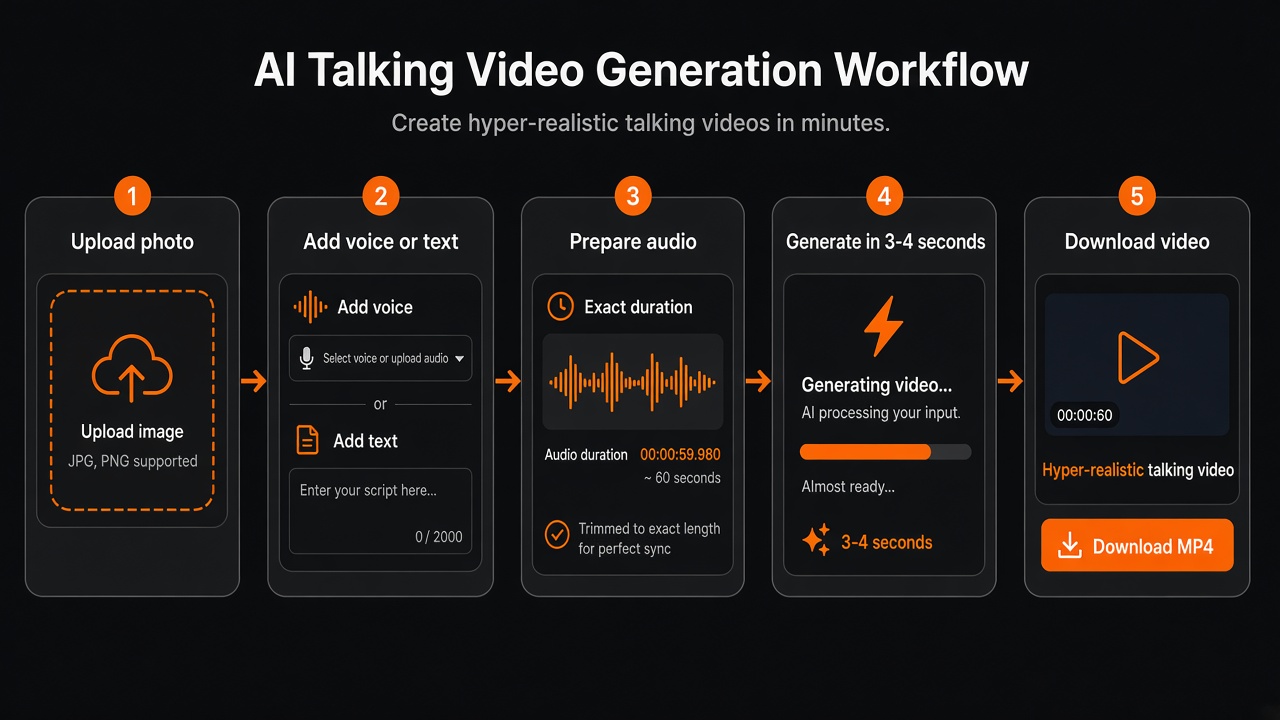
Start with a still. A headshot, a portrait, a product founder photo—whatever face you want on camera. Then choose how they speak: type the line and synthesize it, record yourself, or upload audio. Prefer it to sound like you? Clone your voice and keep going.
Before generate, you prepare the audio. That step is the unlock. You hear the take. You see the duration. You know what the video will have to cover. Only then do you hit generate—and in typical runs, the hyper-realistic talking clip is ready in about three to four seconds.
Need more life in the performance? Open the motion prompt. Steer hand gestures, upper-body energy, and how the person carries themselves while talking. Identity and framing stay locked; the performance gets direction.
Key features
- Single photo is enough to start
- Voice clone optional; presets and uploads work too
- Motion prompt for gestures and expressive movement
- Create Twin Video tab: prepare, then generate
Hyper-Realistic Means the Face Has to Carry the Line
“AI avatar video” used to mean a stiff mouth on a frozen portrait. That bar is gone. Hyper-realistic talking video has to survive a mute scrub: eyes, micro-expressions, head motion, and—when you ask for it—hands that actually punctuate the sentence.
That is why motion prompting matters. A product explainer may need calm, confident gestures. A social clip may need more energy. Same face. Different direction. You are not stuck with a single canned performance baked into the model.
The point is not novelty. It is trust. If the face looks synthetic, the message gets discounted. If the face looks present, people listen longer—even when they know it is AI.
Key features
- Lip sync tied to real prepared audio
- Natural head motion and blinks by default
- Optional gesture and movement direction via motion prompt
Why Speed Changes What You Will Actually Ship
Typical generate
~3–4 sec
Iterate
Same session
Bottleneck
Your script
Not
The queue
When a talking clip takes minutes, you write carefully and generate once. When it takes about three to four seconds, you try the blunt version, the warmer version, and the shorter version before lunch.
That is the real product change. Fast hyper-realistic video turns avatar clips into a drafting tool, not a ceremony. Pair that with exact audio length and you stop wasting cycles on clips that were doomed by a bad duration guess.
Use it for founder updates, support explainers, course intros, sales follow-ups, or social hooks—anywhere a face saying one clear thing beats another wall of text.
Key features
- Typical generation around 3–4 seconds
- Fast enough to A/B lines in one sitting
- Fits marketing, support, education, and personal brand clips
Try It on Create Twin
Open Create Twin, pick or upload a face, switch to the Video tab, and prepare audio from text, mic, or file. Check the duration. Add a motion prompt if you want stronger gestures. Generate. Download when it looks right.
If you already use Ai Twin for live conversation, think of talking video as the export sibling: same face energy, clip-shaped output, built for moments when you need a file—not a live session.
Key features
- Path: Create Twin → Video tab
- Prepare audio before generate
- Motion prompt optional but powerful for gestures
Speech first. Then the face.
Founders
Ship a talking update without booking a camera day
Marketers
Turn a script into a face-led clip with exact runtime
Support & success
Record explainers that feel human and stay on-message
Creators
Clone a voice, gesture it up, and iterate in seconds
Hyper-realistic talking video should not start with a duration guess. It should start with something said—typed, recorded, or uploaded—so the length is true before the pixels move.
That is what we launched: photo in, prepared speech, motion you can steer, and a talking clip that typically lands in about three to four seconds. Stop padding the timeline. Start directing the take.
Frequently Asked Questions
How long does talking video generation take?
In typical runs, generation takes about three to four seconds after your audio is prepared. Exact times can vary with load and clip length, but you should not expect a multi-minute render queue for a short talking clip.
Do I have to guess how many seconds of video I need?
No. You prepare the audio first—from text-to-speech, a mic recording, or an upload—so the duration comes from the speech itself instead of a guessed slider.
Can I use my own face and voice?
Yes. Upload a photo for the face, and use a cloned voice, a preset voice, or your own recorded/uploaded audio for speech.
What does the motion prompt do?
It steers performance details like hand gestures and upper-body movement while the person talks, without changing identity, clothing, or locked framing.
Where do I try it?
Go to Create Twin on aitwin.me, open the Video tab, prepare audio, then generate.

